Overview
The Subtask Board app provides flexible visibility controls at two levels:
Global (Site-wide): Jira administrators can set a default for all projects
Project-level: Project administrators can override the global setting for their specific project
This two-tier approach allows organizations to control app visibility while giving project teams autonomy over their workspace.
Default Behavior
When the app is first installed, the global default is set to "Enabled".
Global Admin Settings
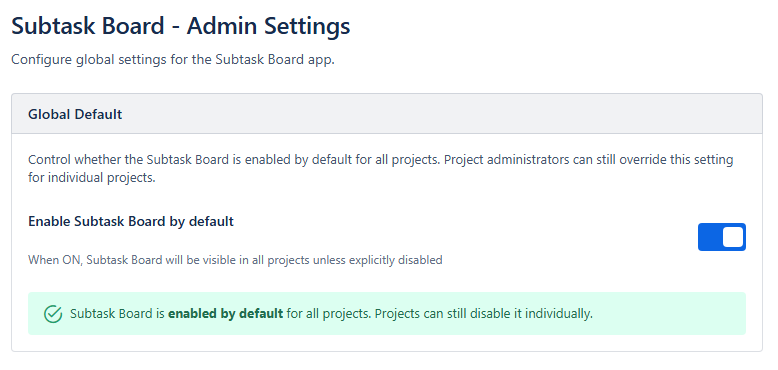
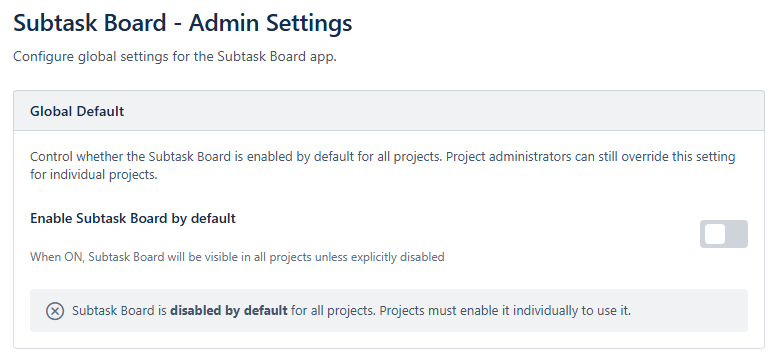
Enable Subtask Board by Default
This toggle controls whether the Subtask Board is visible across all projects by default.
Setting | Behavior |
|---|---|
ON (Default) | Subtask Board tab appears in all projects unless a project admin explicitly disables it |
OFF | Subtask Board tab is hidden in all projects unless a project admin explicitly enables it |
How to access:
Go to Jira Admin Settings (gear icon)
Navigate to Apps
Click Subtask Board Admin (or use the "Configure" link from the app listing)
Project Settings
Project administrators can override the global setting for their specific project. There are three options:
Option 1: Use Global Default
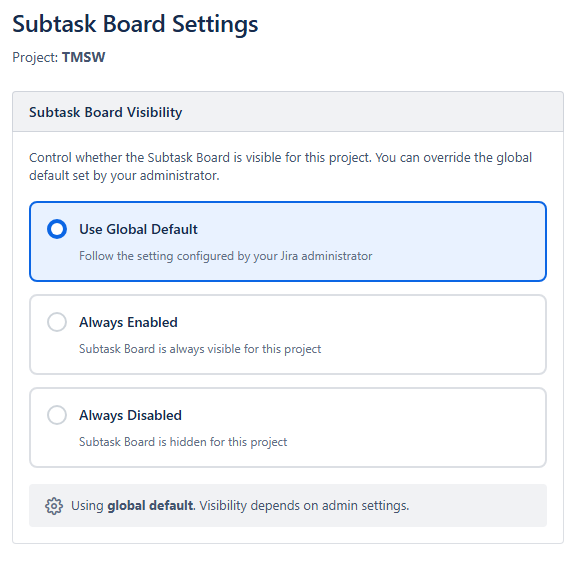
Aspect | Details |
|---|---|
What it does | Follows whatever the Jira administrator has set globally |
Best for | Projects that don't need special configuration |
Behavior | If global default changes, this project's visibility changes too |
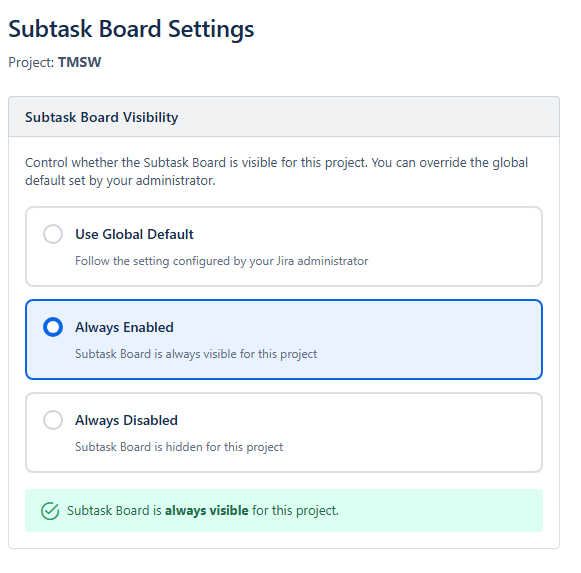
Option 2: Always Enabled
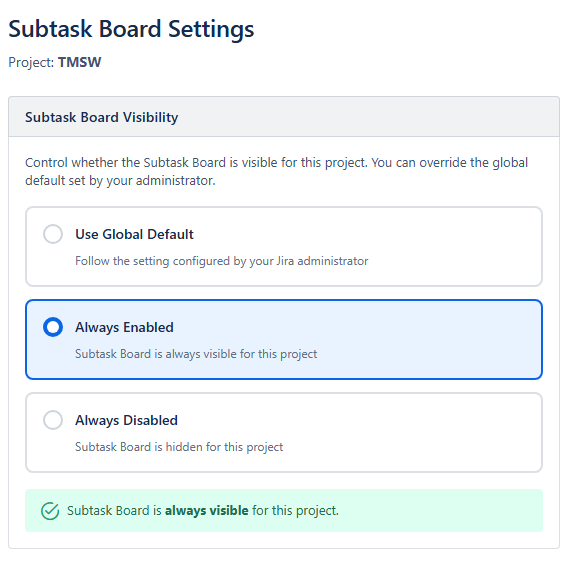
Aspect | Details |
|---|---|
What it does | Subtask Board is always visible for this project |
Best for | Teams that rely on the Subtask Board regardless of global settings |
Behavior | Overrides global setting; board stays visible even if global default is OFF |
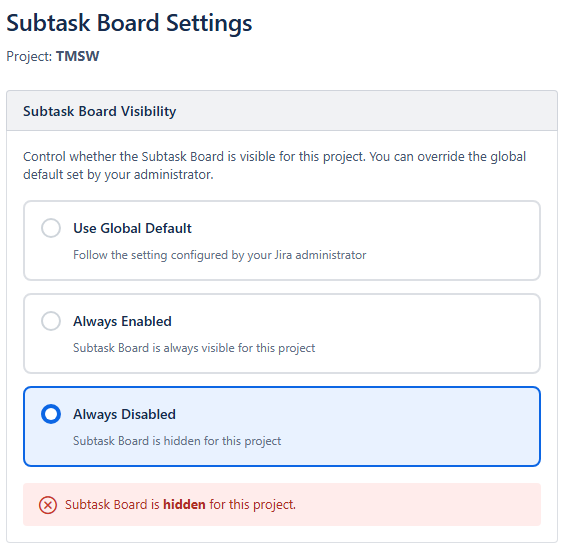
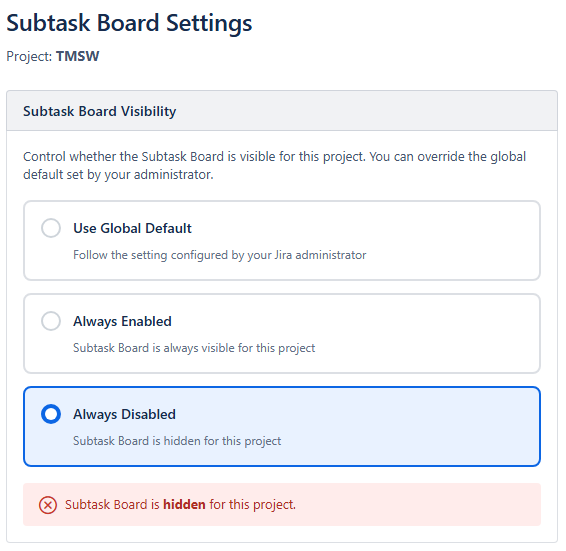
Option 3: Always Disabled
Aspect | Details |
|---|---|
What it does | Subtask Board is hidden for this project |
Best for | Projects that don't use subtasks or prefer the standard board |
Behavior | Overrides global setting; board stays hidden even if global default is ON |
How to access:
Navigate to your project
Click Project Settings (gear icon in sidebar)
Under Apps, click Subtask Board Settings
Settings Matrix
This table shows when the Subtask Board tab will be visible based on all possible combinations:
Global Default | Project Setting | Subtask Board Visible? |
|---|---|---|
ON | Use Global Default | ✅ Yes |
ON | Always Enabled | ✅ Yes |
ON | Always Disabled | ❌ No |
OFF | Use Global Default | ❌ No |
OFF | Always Enabled | ✅ Yes |
OFF | Always Disabled | ❌ No |
Key takeaway: Project settings always take precedence when explicitly set to "Always Enabled" or "Always Disabled".
Common Scenarios
Scenario 1: Rolling out to the entire organization
Leave global default ON (this is the default)
Communicate to teams that Subtask Board is now available
Teams that don't want it can disable it in their project settings
Scenario 2: Pilot with specific teams
Set global default to OFF
Have pilot teams enable it in their project settings ("Always Enabled")
Once pilot is successful, turn global default ON
Scenario 3: Restricting access to certain projects
Set global default to OFF
Enable only for approved projects via project settings
New projects won't have access until explicitly enabled
Scenario 4: Available everywhere except sensitive projects
Set global default to ON
Disable for sensitive/restricted projects via project settings
All other projects have automatic access
Permissions Required
To change Global Settings:
Jira Administrator permission required
Access via: Jira Settings → Apps → Subtask Board Admin
To change Project Settings:
Project Administrator permission required
Access via: Project Settings → Apps → Subtask Board Settings
Frequently Asked Questions
Q: What happens to existing projects when I change the global default?
A: Projects set to "Use Global Default" will immediately reflect the new setting. Projects with explicit overrides ("Always Enabled" or "Always Disabled") are not affected.
Q: Can users see the Subtask Board tab if they don't have permission to edit issues?
A: Yes, if the project has Subtask Board enabled, users can view the board. However, they can only perform actions (create subtasks, drag cards, etc.) if they have the appropriate Jira permissions.
Q: Does changing settings affect existing data?
A: No. Changing visibility settings only controls whether the Subtask Board tab appears. All your issues, subtasks, and customizations remain intact.
Q: How quickly do setting changes take effect?
A: Changes take effect immediately. Users may need to refresh their browser to see the updated project navigation.
Troubleshooting
Subtask Board tab not appearing
Check project settings: Ensure the project isn't set to "Always Disabled"
Check global settings: If project is set to "Use Global Default", ensure global default is ON
Verify permissions: Ensure you have access to the project
Refresh browser: Setting changes may require a page refresh
Check app installation: Verify the app is installed in your Jira instance
Can't access settings pages
Global settings: Requires Jira Administrator permission
Project settings: Requires Project Administrator permission
Contact your Jira admin if you need settings changed but lack permissions
Support
If you have questions about settings or need assistance, please:
Visit the app's support page in the Atlassian Marketplace
Contact your Jira administrator for organization-specific policies
Attachments:
Admin-App-Global-Disabled.png (image/png)
Settings - Always Disabled.png (image/png)
Settings - Always Enabled.png (image/png)
Settings - Use Global Default.png (image/png)
Settings - Always Enabled.png (image/png)
Settings - Always Disabled.png (image/png)
